


Pikabuk inside Canvas

How a teacher assigns a story, a student watches, reads and takes the quiz, and the score lands in the Canvas gradebook.

Live demo on an Instructure-hosted Canvas · LTI 1.3 · November 2026

Today

One story, from the teacher's click to the gradebook

  1. TeacherOpens Pikabuk from the course menuThe library, already signed in, for her class
  2. TeacherAssigns a storyOne click creates a normal Canvas assignment
  3. StudentWatches, reads, takes the quizOpens it from Canvas Assignments
  4. CanvasGets the best scoreIn the gradebook column, with no manual entry
  5. School adminSees usage, installs with one linkCounts only, no student names

Everything you'll see runs on a real Canvas course with test accounts: one teacher, six students.

How it fits together

Four standard connections. Nothing custom on the Canvas side.

Canvas your school's, hosted by Instructure Course menu Assignments Gradebook People (class list) Pikabuk opens inside the course Library Film, book, read-along Quizzes My class · School view 1 · Signed launch LTI 1.3 2 · New assignment + column AGS 3 · Best quiz score AGS 4 · Class list on request NRPS

LTI 1.3, Assignment and Grade Services (AGS) and Names and Role Provisioning (NRPS) are 1EdTech standards that every current Canvas supports.

Teacher

Pikabuk is a tab in her course

  1. 1She clicks Pikabuk in the course menu, next to Assignments and Grades.
  2. 2The Netflix-style library opens inside Canvas. No second login.
  3. 3Canvas has already told Pikabuk who she is and which class she teaches.
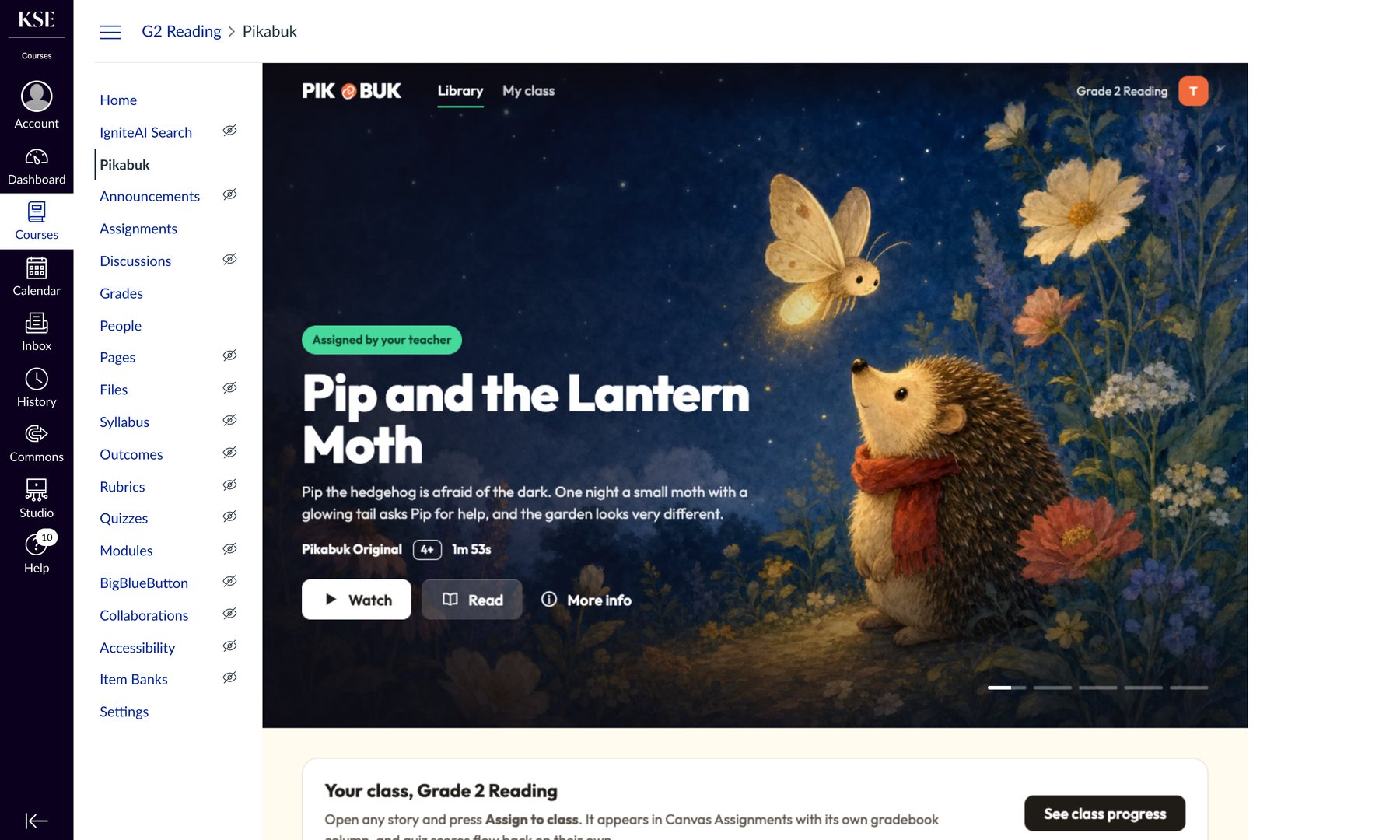
Canvas course with the Pikabuk library open inside it 1 2 3
Canvas course “Grade 2 Reading”, teacher account

Under the hood · launch

Signed by Canvas, checked by Pikabuk

Teacher's browser Canvas Pikabuk 1 · clicks Pikabuk in the course menu 2 · signed launchwho · role · course · deployment 3 · checks before opening signature against Canvas keys one-time nonce, not replayed installation is registered 4 · library for this course, as teacher

A forged, expired or replayed launch is refused. Each school's installation is kept apart from every other one.

Student and teacher

One story, three ways in
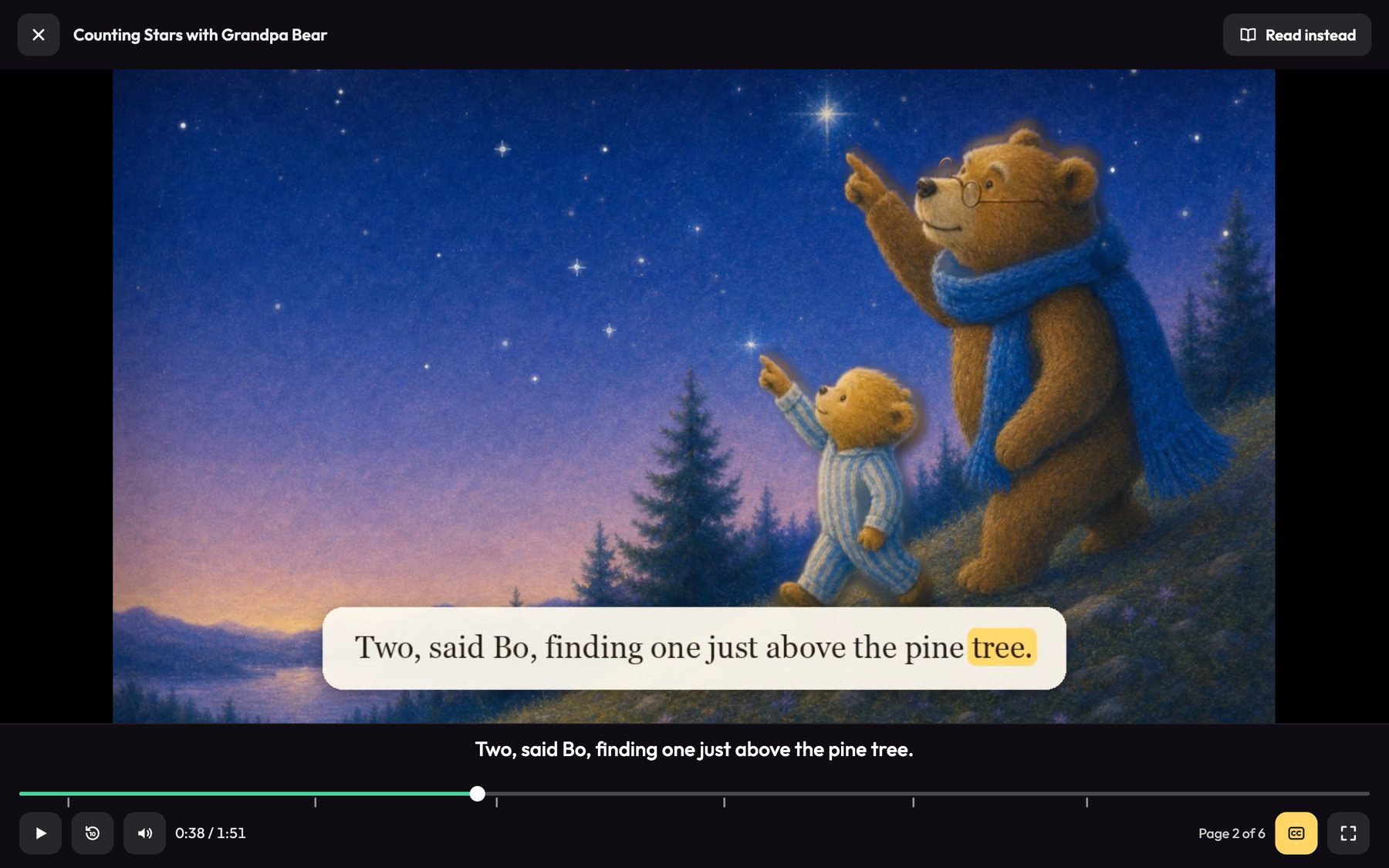
Film player with the narrated sentence highlighted
Watch a narrated film with the words on screen
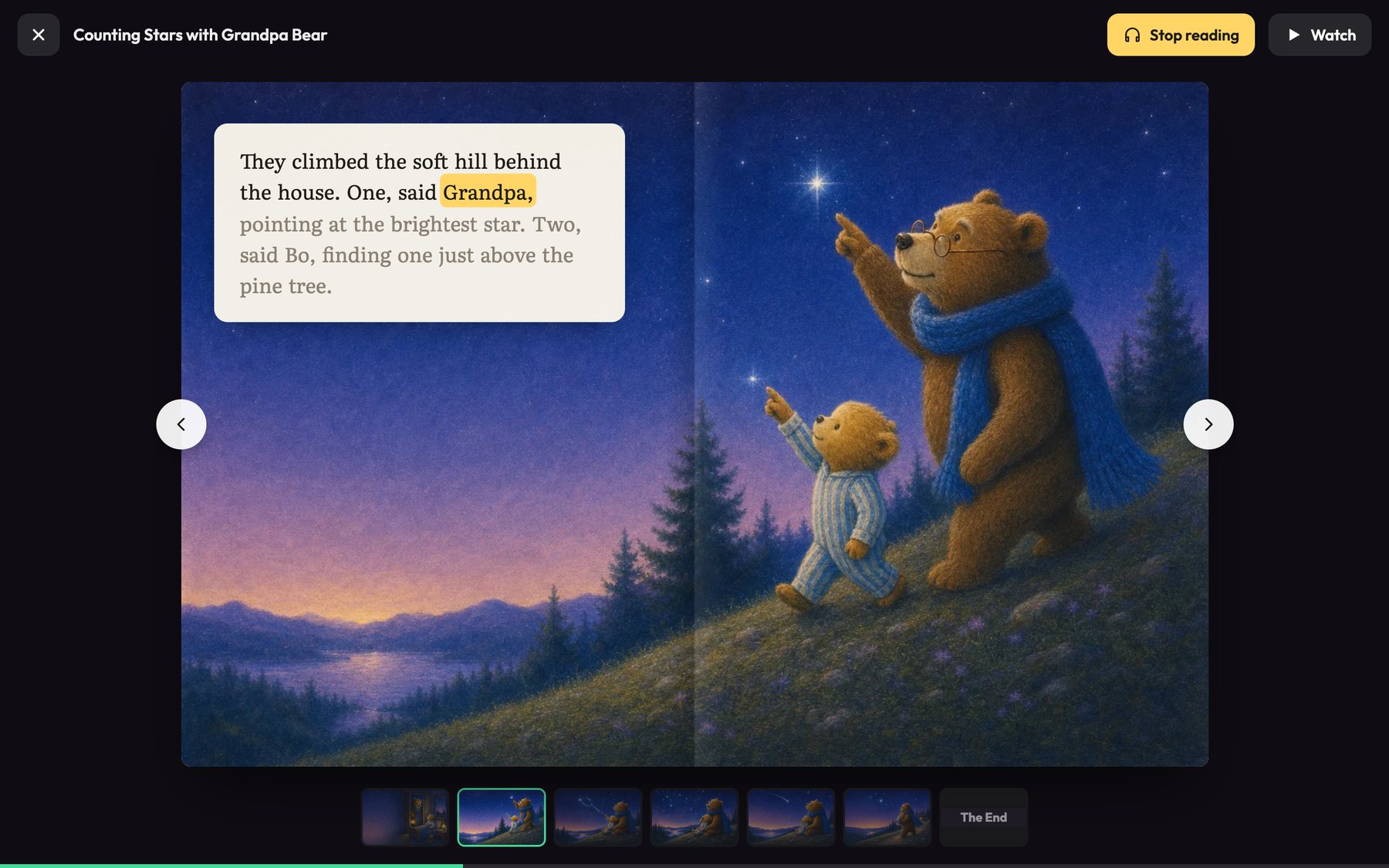
Picture book with the current word highlighted
Read the picture book at your own pace
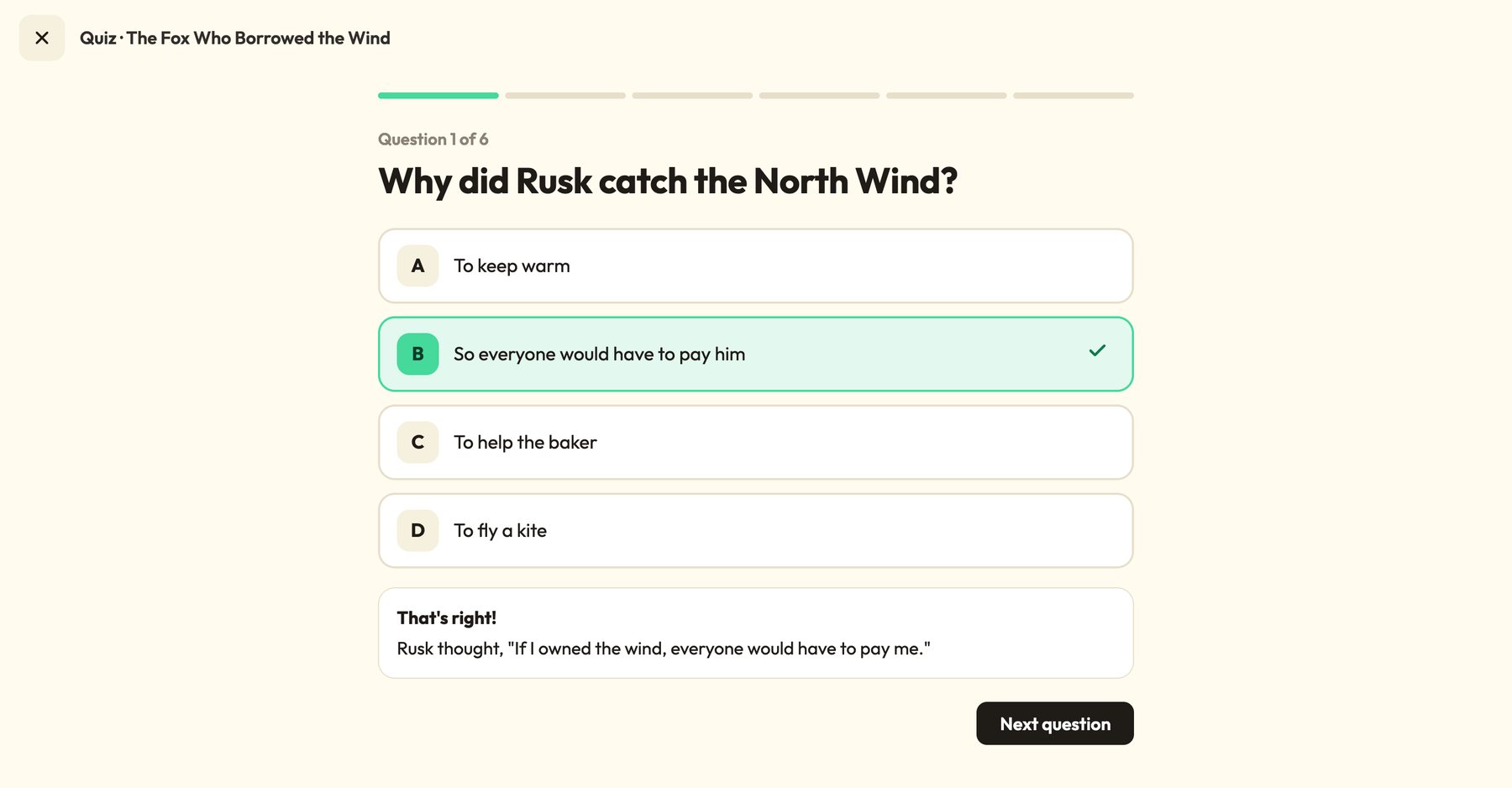
Quiz question with an explanation after the answer
Quiz with an explanation after every answer

The stories in this demo were made for it. Your films, PDF books and EPUB titles go into the same slots.

Watch

The words light up as they're spoken

  1. 1The narrated word is highlighted inside the film.
  2. 2Captions can sit under the picture instead of covering it.
  3. 3Page markers on the timeline match the book.

Only the parts actually played count as watched. Skipping to the end doesn't.

Film player 1 2 3
Counting Stars with Grandpa Bear · film

Read

A picture book that can read itself aloud

  1. 1Read to me narrates the page and turns it when the page is done.
  2. 2Each word lights up as it's read, so early readers can follow along.
  3. 3Children can jump to any page. Progress is saved for each format.
Picture book reader 1 2 3
Same story · picture book with Read to me on

Teacher

One click makes a normal Canvas assignment

  1. 1She picks a due date, or none.
  2. 2Assign to class creates it: 100 points, its own gradebook column.
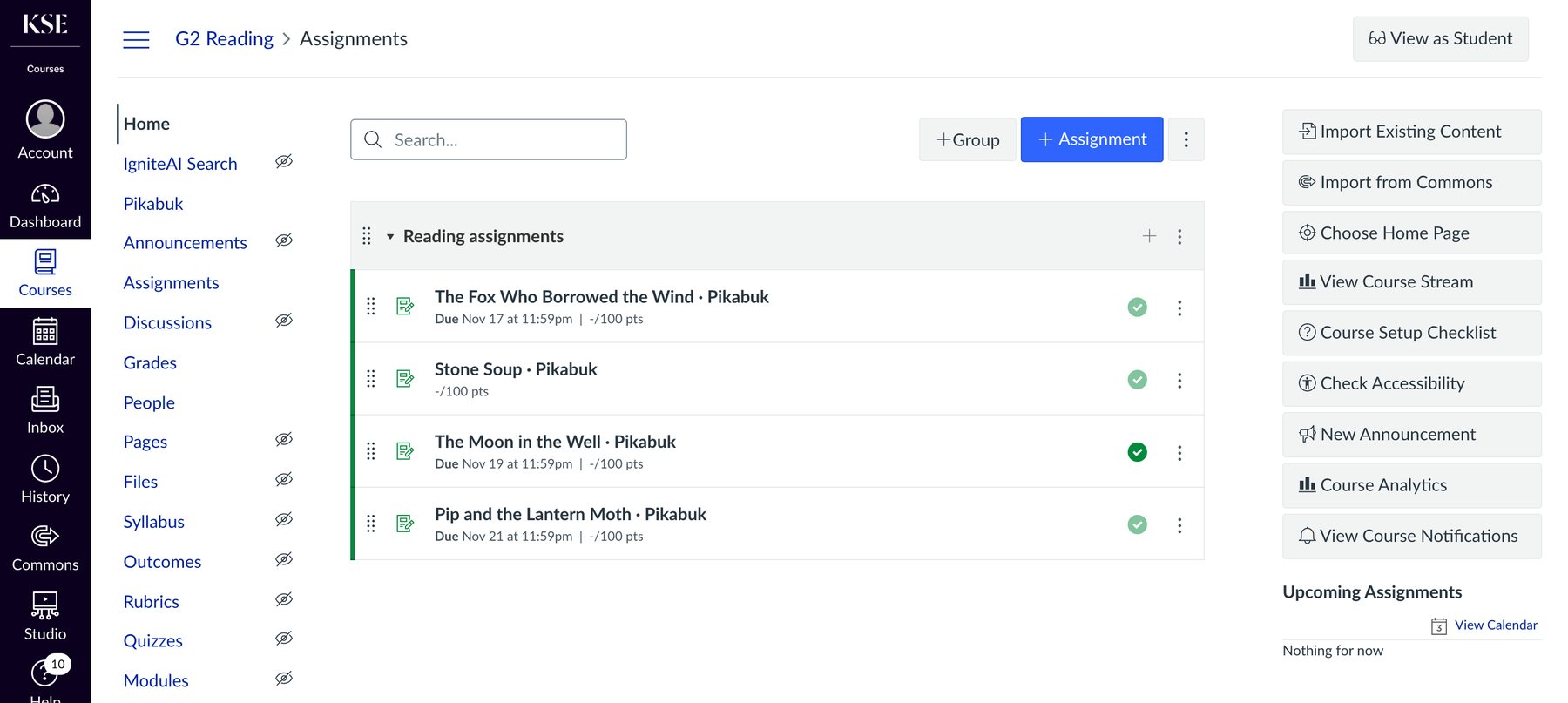
  3. 3It appears in Canvas Assignments right away, due 11:59 pm that day.

Assigning the same story again reuses the assignment. No duplicates.
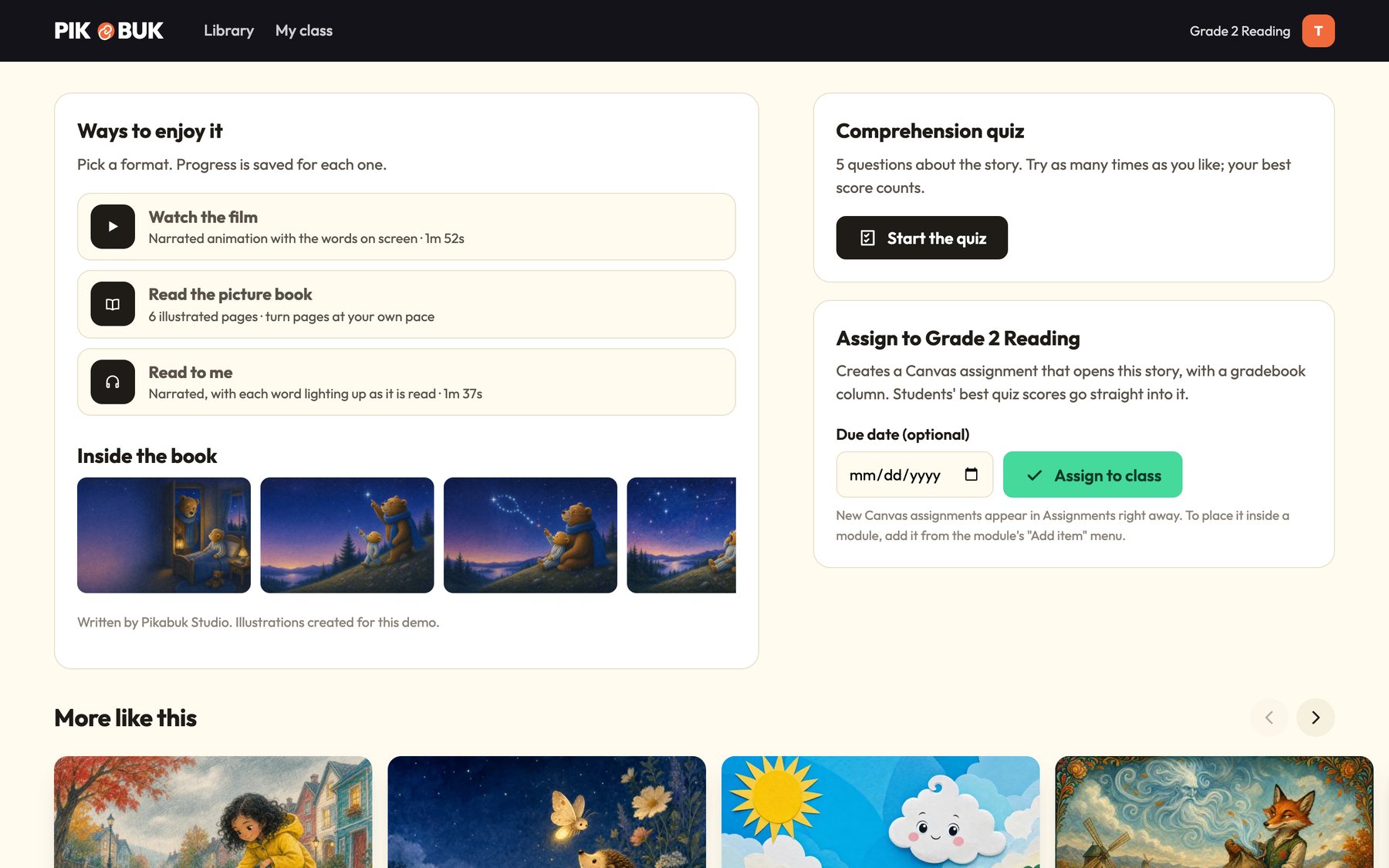
Assign to class panel on a story page 1 2
Canvas Assignments list with Pikabuk stories 3
Pikabuk page, then Canvas Assignments

Student

She lands straight on the story

  1. 1A Pikabuk assignment looks like any other one in Canvas: due date, points, submission.
  2. 2The story opens inside it with Watch, Read and Quiz. No login, no searching.
  3. 3Her grade shows here once she's done the quiz.
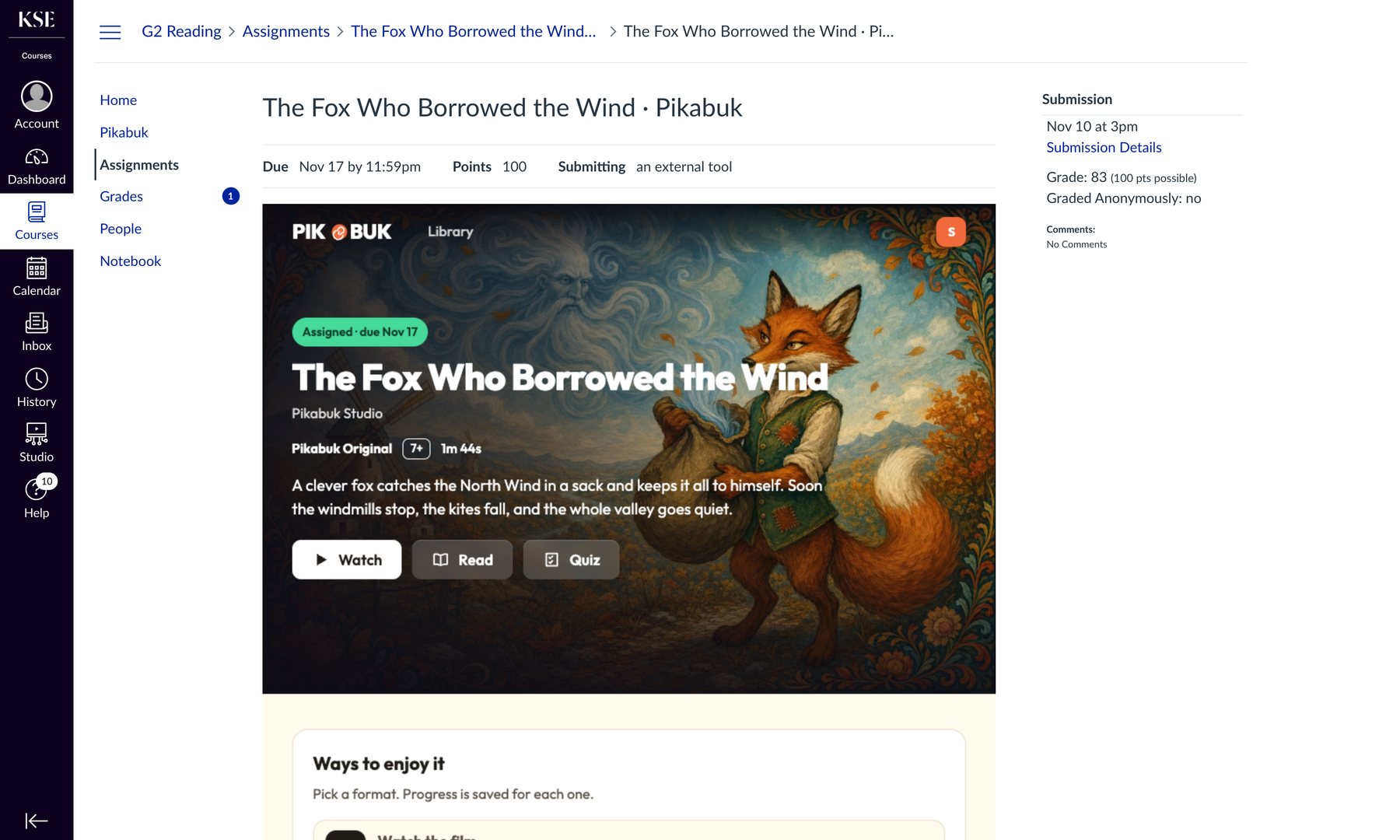
Student view of a Pikabuk assignment in Canvas 1 2 3
Canvas assignment, student account

Student

Every answer explained. The best try goes to Canvas.

Quiz question answered with an explanation 1
1 Right or wrong, she sees why, quoted from the story.
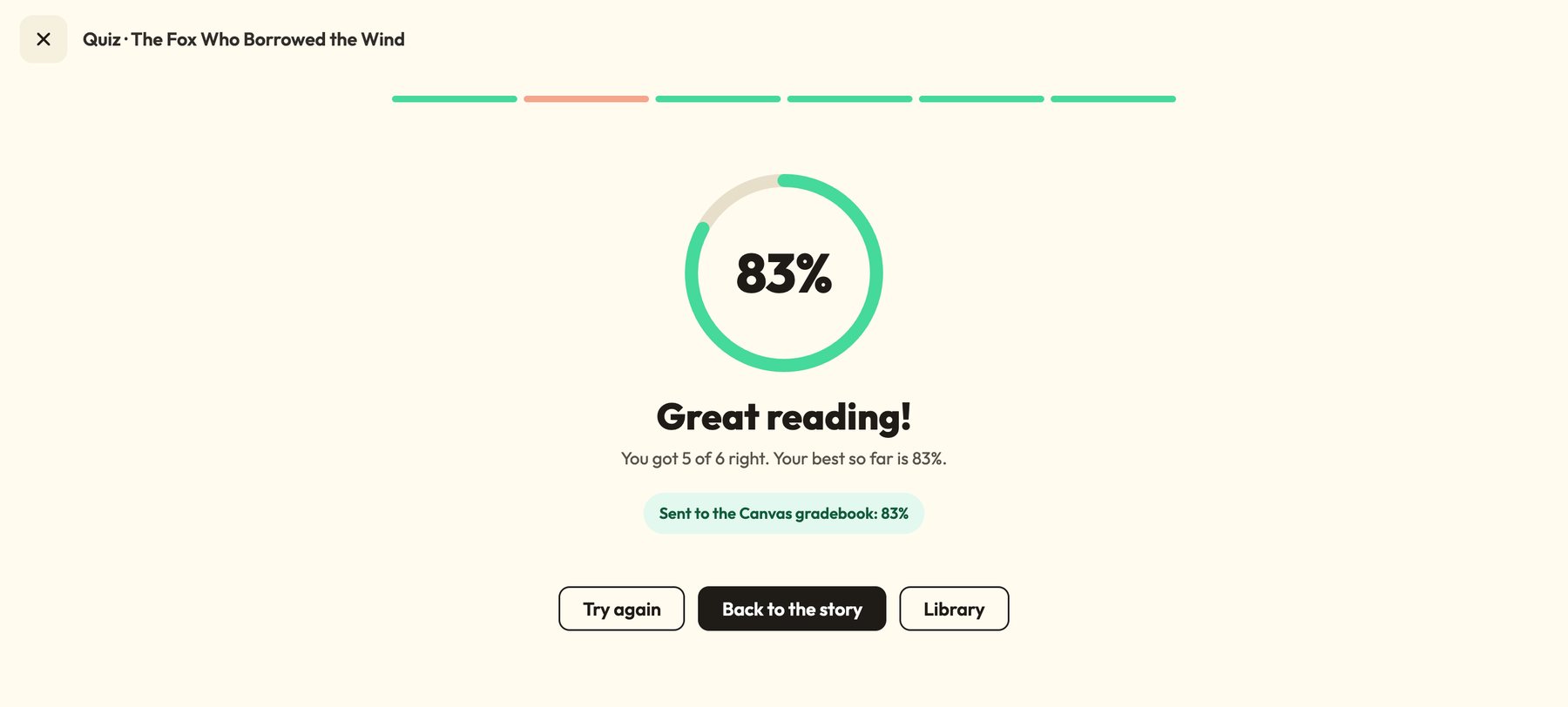
Quiz result sent to the Canvas gradebook 2
2 The score is sent to Canvas. She can retry; only her best counts.

Answers are checked on the server, so the answer key never reaches the browser.

Under the hood · grades

From one click to a filled gradebook column

1Teacher assignsin Pikabuk 2Assignment + columncreated in Canvas (AGS) 3Student opens itfrom Canvas Assignments 4Takes the quizretries allowed, best kept 5Best score sentto that column (AGS) 6Canvas gradebookteacher sees it as usual

If Canvas can't be reached when a quiz ends, the score is kept and the teacher gets a button to send it again.

Canvas

Scores arrive in the gradebook by themselves

  1. 1Each assigned story is its own column, out of 100.
  2. 2The student's best quiz score is already filled in. Nobody typed it.

Totals, grading periods and exports work exactly as with any Canvas assignment.
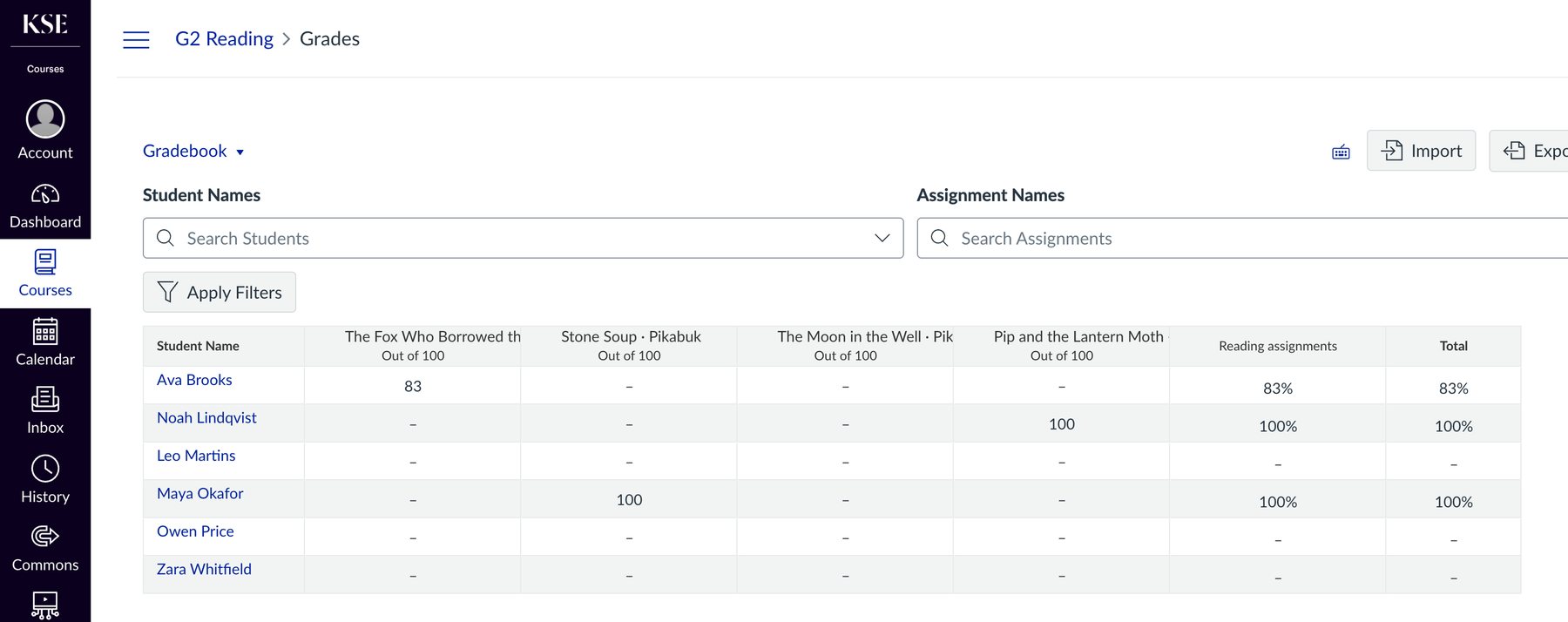
Canvas gradebook with Pikabuk columns 1 2
Canvas Grades, teacher account

Teacher

Who watched, who read, who passed

  1. 1Every student in the Canvas course, including those who haven't opened Pikabuk yet.
  2. 2Best score and number of tries for each assigned story.
  3. 3How much of the film or book they actually got through.
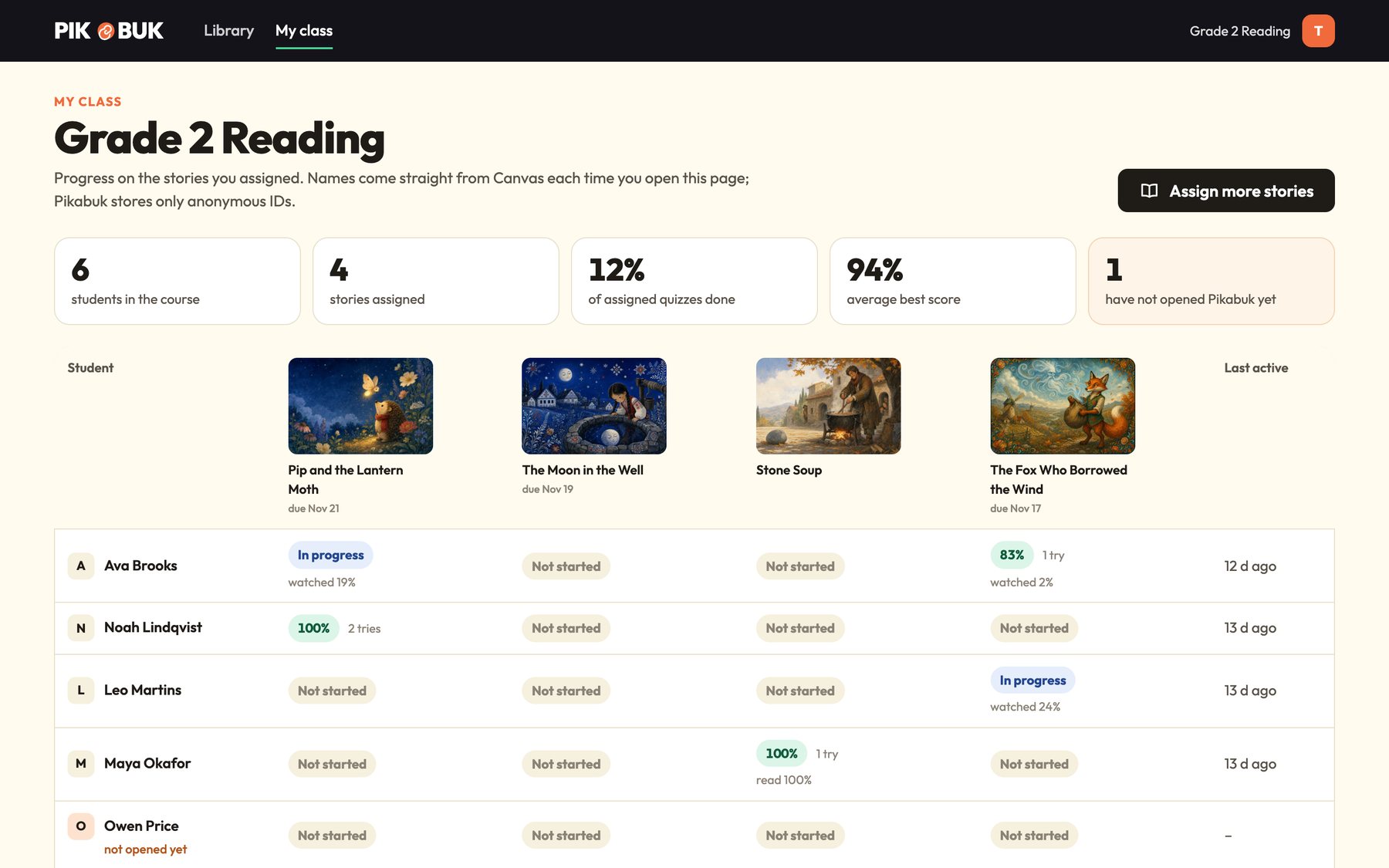
My class progress table 1 2 3
Pikabuk · My class (test students)

Privacy

Student names stay in Canvas

Pikabuk keeps

  • An anonymous Canvas user ID and the course role
  • Course ID and course name
  • What was watched or read, quiz answers and scores

Pikabuk never stores

  • Student names. Canvas sends the class list when the teacher opens My class; Pikabuk shows it and forgets it.
  • Emails, Canvas passwords, other courses. Not requested at all.

A school can also install Pikabuk as anonymous. Teachers then see numbered students in Pikabuk and names only in the Canvas gradebook.

School admin

Usage across the school, in numbers only

  1. 1Courses, active students, assigned stories, quizzes done and the average best score.
  2. 2The most read stories across all courses.

Opens from the admin menu in Canvas. Counts students only: a teacher trying the quiz doesn't skew the numbers.
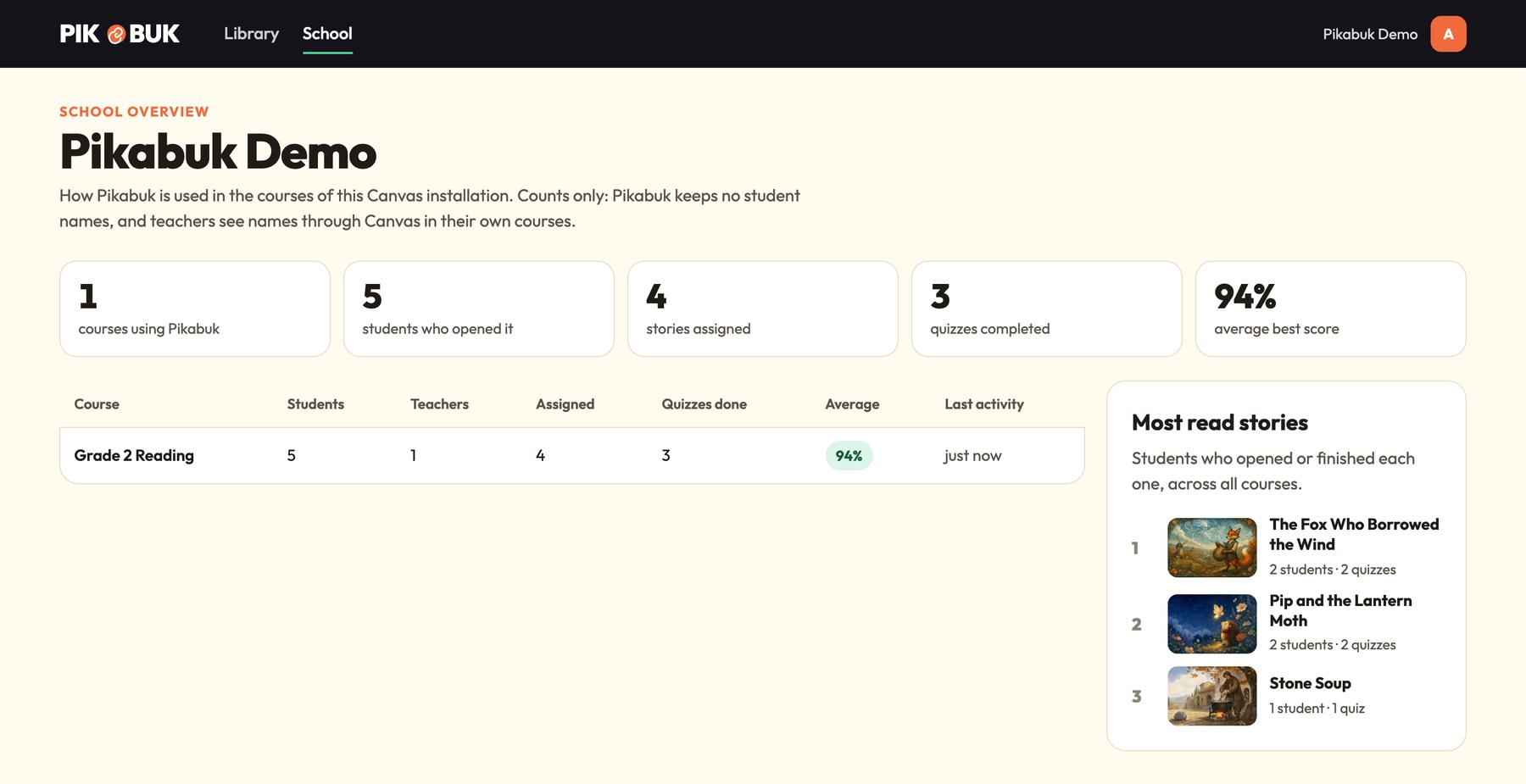
School overview with usage numbers 1 2
Pikabuk · School overview for the demo sub-account

School admin

A school installs Pikabuk with one link

  1. Paste the linkCanvas Admin → Apps → Install a New App → Dynamic Registration
  2. Review and installCanvas lists what Pikabuk asks for: gradebook, class list, where it appears
  3. Turn it on where it's paid forIt starts as Not available. The admin enables it for the sub-accounts with a subscription.

No keys to copy between systems. Canvas and Pikabuk exchange them during registration.
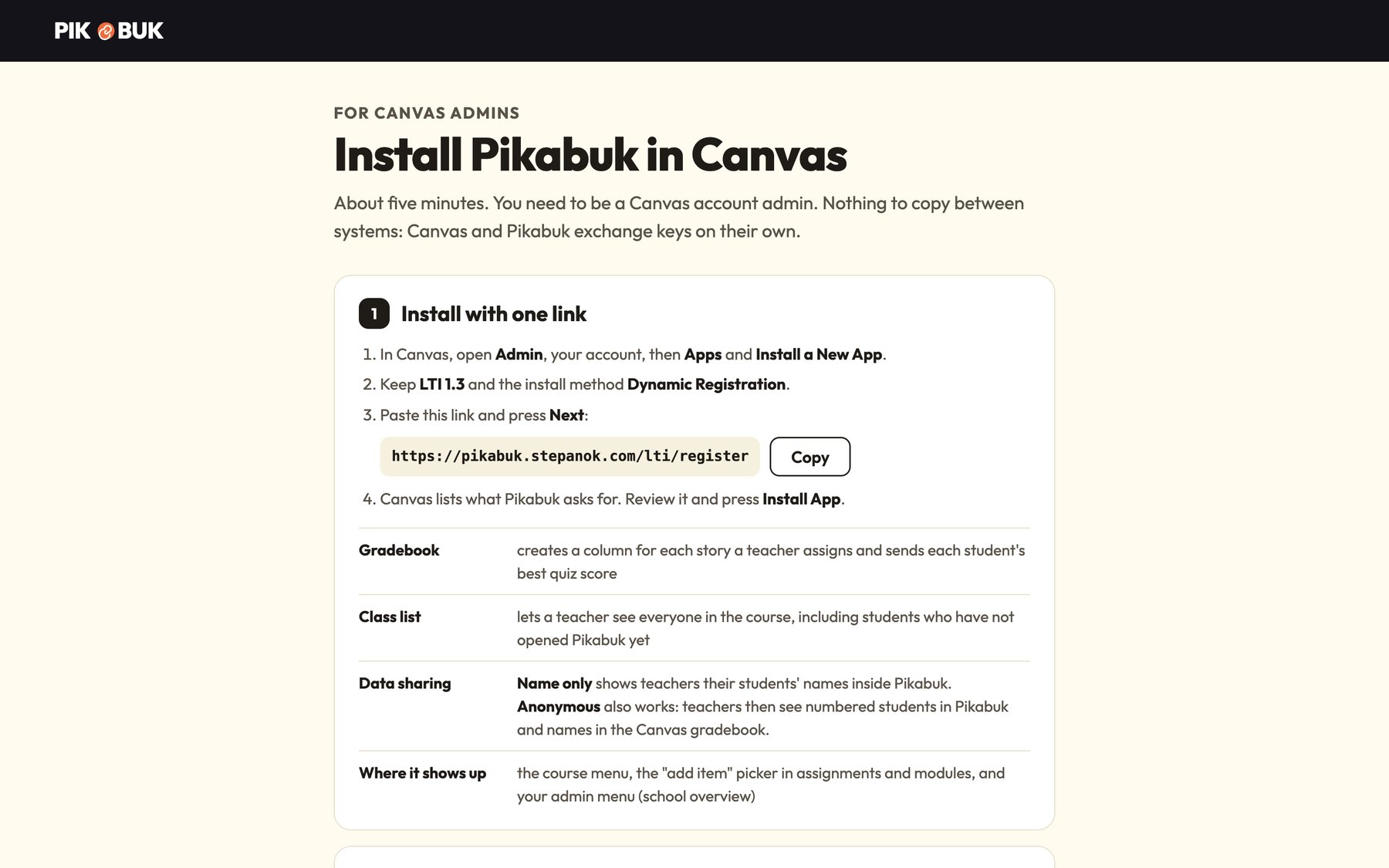
Install guide for Canvas admins
The public install guide for Canvas admins

From demo to pilot

What happens next

  1. 1
    Load your content

    Your animations, PDF flipbooks and EPUB titles, with their quizzes. We need access to where they're stored and a short description of each format.

  2. 2
    Pilot with one school

    Their Canvas admin pastes the link. We help set up the first course and watch the first week of use.

  3. 3
    Later phases

    Reading aloud with pronunciation feedback, reminders for students, district-level reports.

Tested so far in desktop browsers and phone browsers. The Canvas mobile app and Safari on iPad are next on the test list.

Questions?

Next we'll go through it live in Canvas.